
Does your PC really need to open all that?
You turn on your computer, wait for it to load, and suddenly a bunch of programs are already open. Then the browser starts stuttering and every click seems to take forever. Before installing an optimizer, it is worth sorting out what is already running on your PC.
In this guide, you will make five quick changes on Windows 10 or 11, using features from Microsoft and the browser you already use. The idea is to spend about five minutes changing settings, then observe the results in your own routine.
The benefit depends on your starting point: if lots of apps launch together and you leave many tabs open, there is more to change. If everything is already configured well, the difference may be small. This tutorial does not promise a specific FPS gain or turn old hardware into a new PC.
Before you start: the quick route
Follow steps 1 through 5. Gaming extras and further explanations come afterward, so you can read them at your own pace. Five minutes is a target for the basic setting changes; reading, cleaning files, restarting, and testing are outside that estimate.
💻 Save your work and close it.
🔌 If you use a laptop, plug in the charger for the power step.
📷 Note or photograph the original value of each setting you change.
↩️ If you dislike a change, return to the same place and restore the previous option.
1. Remove apps you do not need at startup
Start with Settings → Apps → Startup on either Windows 10 or 11. Turn off only programs you recognize and do not need immediately after turning on the PC. You can still open them normally afterward.
Alternatively, press Ctrl + Shift + Esc. On Windows 11, look for Startup apps; on Windows 10, click More details if shown, then open the Startup tab.
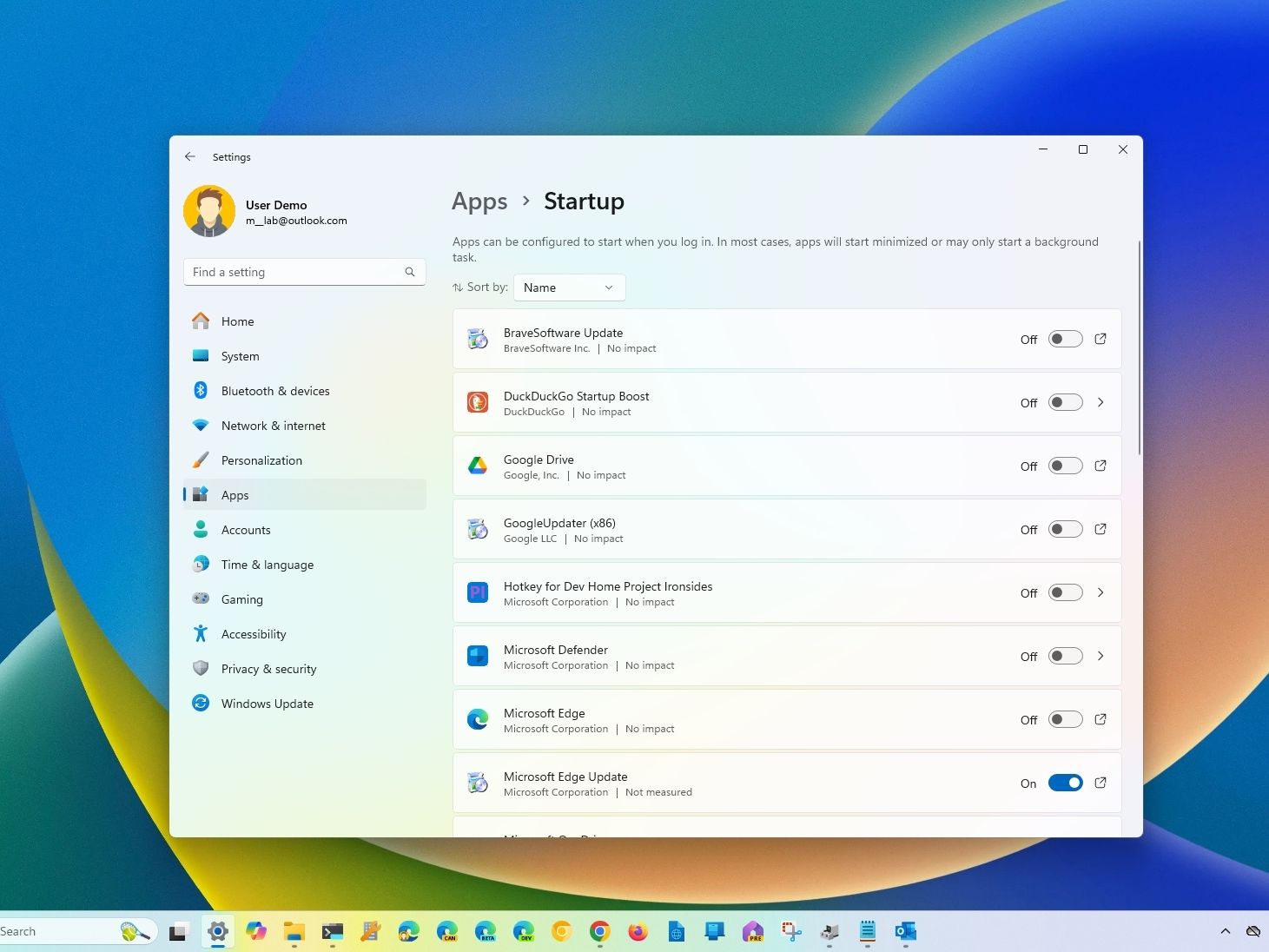
Reference image: Windows Central. The screenshot may show an older version in English; button names and positions can vary.
My suggestion for deciding: “Do I really need this open every time?” A game launcher you use once a week can wait. A messaging app you use for work may need to stay. Leave antivirus, accessibility features, and tools needed by your devices enabled.
To notice the effect: these changes apply the next time you sign in. Disabling startup does not close an app that is already running. If you do not need it now, close it from its own window or its icon near the clock after saving your work.
💡 Read the official explanation and details for this setting.
2. Reduce animations while keeping text readable
This is the easiest change to show: open and minimize a window before and after. Without animation, the transition is more immediate. This changes the look and perceived responsiveness of Windows; it does not prove your game gained FPS.
Windows 11: go to Settings → Accessibility → Visual effects and turn off Animation effects. Transparency is optional, based on your preference.
Windows 10: go to Settings → Ease of Access → Display and turn off Show animations in Windows.
💡 Read the official explanation and details for this setting.
If you prefer the classic dialog, search Start for Adjust the appearance and performance of Windows. Under Visual Effects, choose Custom and clear the animation options. Keep Smooth edges of screen fonts checked for readable text.
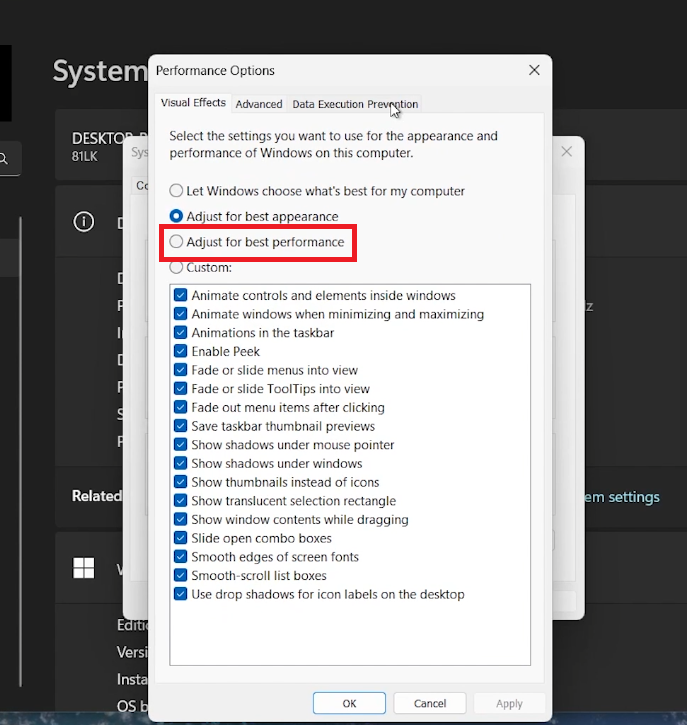
Reference image: Tech How. The screenshot may show an older version in English; button names and positions can vary.
The reference screenshot above has the best-performance option selected. To follow this guide, use Custom as explained. You can also reach the dialog using Win + R → SystemPropertiesAdvanced → Advanced → Performance → Settings. Stay on the visual effects tab.
💡 Read the official explanation and details for this setting.
3. Match power settings to what you are doing
On Windows 11: open Settings → System → Power & battery, or Power on a desktop. Under Power mode, choose Best performance for plugged-in use. If you cannot change it, a custom power plan may be selected; the official guidance is to return to Balanced in Control Panel.
On Windows 10: on compatible laptops, click the battery icon and move the slider to Best performance. If the option is unavailable, try the alternative below. Availability depends on your computer and its manufacturer.
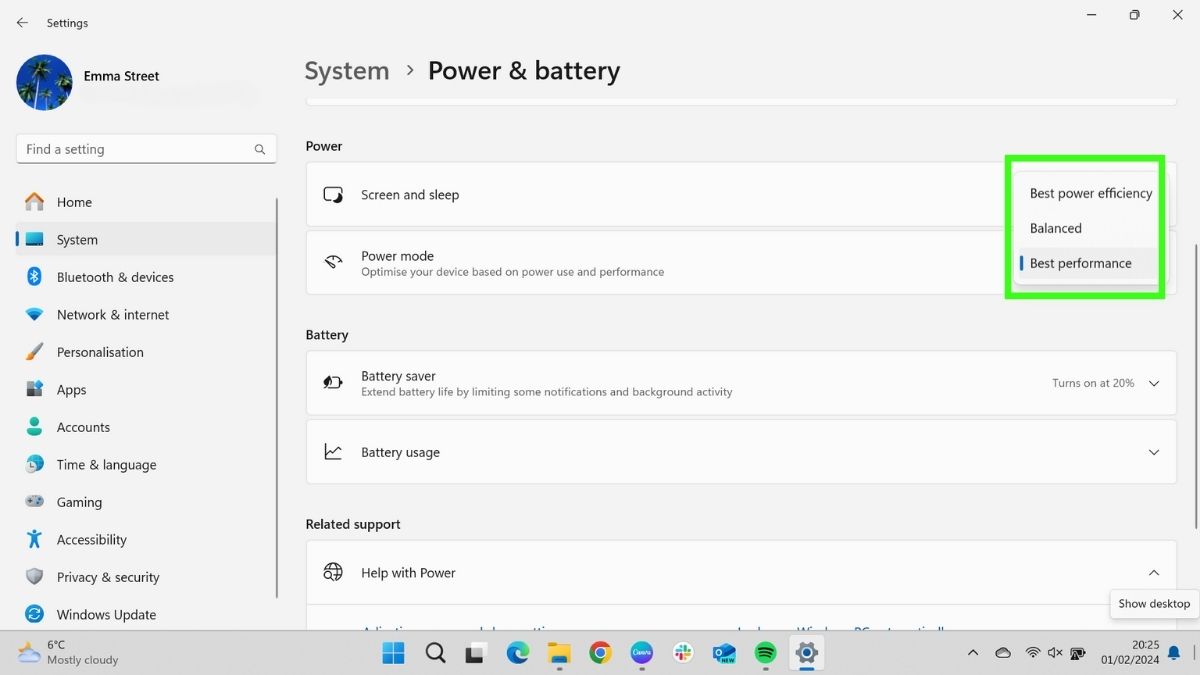
Reference image: TechRadar. The screenshot may show an older version in English; button names and positions can vary.
💡 Read the official explanation and details for this setting.
Control Panel alternative: open Power Options and look for High performance, including under Show additional plans. If available, you can test it while plugged in and compare with Balanced. If it is missing, continue with the available plan; you do not need to create one with a command to follow this tutorial.
Balanced already adapts performance to demand. High performance prioritizes performance at higher power consumption; it does not guarantee every task will run faster. On a laptop, also watch heat, fan noise, and battery use. If changing it does not help, restore the previous setting.
💡 Read the official explanation and details for this setting.
4. Stop apps from returning after a restart
This detail is easy to miss: removing an app from startup and preventing it from reopening after signing in are different things. Check both places if you want to decide what opens when you turn on your computer.
On Windows 10 and 11, open Settings → Accounts → Sign-in options. Find the setting labeled something like Automatically save my restartable apps and restart them when I sign back in and turn it off. Wording may vary between versions.
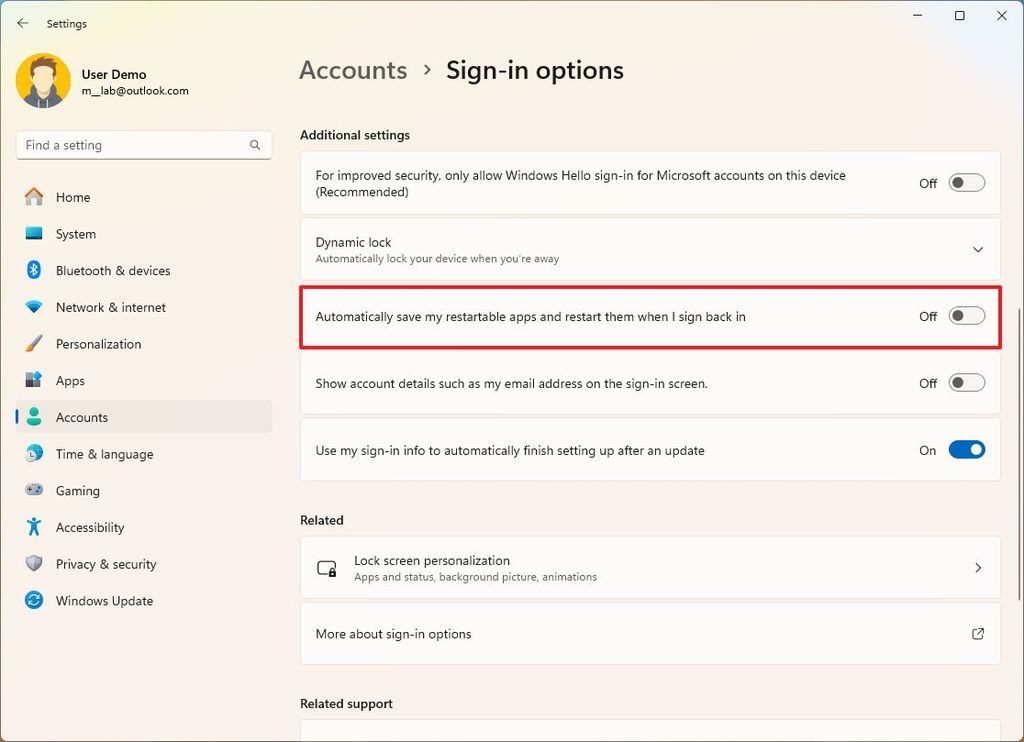
Reference image: Windows Central. The screenshot may show an older version in English; button names and positions can vary.
This controls reopening for applications that support the feature. It does not close programs immediately or prevent every form of automatic startup. If you prefer resuming your work with your windows open, you can keep it enabled.
💡 Read the official explanation and details for this setting.
5. Let forgotten browser tabs rest
Now check the browser you already use. If you tend to open lots of tabs and leave most idle, memory saving is worth testing. Choose the Chrome or Edge instructions; there is no need to install or switch browsers.
In Chrome: open Settings → Performance → Memory Saver. Enable it and start with Balanced when available. Inactive tabs may reload when you return to them.

Reference image: Popular Science, via SEO-Daily. The screenshot may show an older version in English; button names and positions can vary.
The reference screenshot shows an older Chrome version. If your browser offers three levels, look for Balanced. Under Always keep these sites active, add sites you do not want deactivated, such as a work tool that needs to stay ready.
💡 Read the official explanation and details for this setting.
In Edge: open Settings → System and performance → Performance and look for sleeping tabs. Check that it is enabled and set the delay to suit your routine. There is also a list for keeping specific sites active.
Do not expect a fixed amount of freed memory: it depends on the pages open and what each tab is doing. If you only use two or three lightweight tabs, you may notice little difference. Test with your usual workload.
💡 Read the official explanation and details for this setting.
Bonus: rarely use Edge? Check this option
Edge has a feature called Startup boost. It keeps a few background processes ready so the browser opens faster. Microsoft describes its resource impact as limited; this should not be sold as a major performance boost.
If you rarely use Edge and prefer not to keep it ready to launch, go to Settings → System and performance and look for Startup boost. You can turn it off and test. The tradeoff is simple: fewer processes kept ready, but Edge may take longer to open.
💡 Read the official explanation and details for this setting.
Bonus for PC gamers
Windows 11, windowed gaming: go to Settings → System → Display → Graphics and look for Optimizations for windowed games. Check whether it is enabled and restart the game after changing it. The feature supports compatible DirectX 10 and 11 games in windowed or borderless mode; it is not a universal optimization for every game.
PC with two GPUs: in the game’s graphics options, check whether the high-performance preference points to the dedicated GPU. On Windows 10, look for Graphics settings on the Display page; on Windows 11, use Graphics. If you only have one GPU, this choice does not create extra performance.
If a change causes a problem in a particular game, restore that game’s previous setting. You do not need to change every game at once. These extras are outside the basic five-minute route.
💡 Read the official explanation and details for this setting.
What about MSConfig: do you need to unlock CPU cores?
No. Checking Number of processors or Maximum memory in MSConfig is not a performance step. These are diagnostic settings and can limit the resources used by the system. Leave these options out when following this tutorial.
It is also not worth disabling services in bulk just because a list promises a lighter PC. You could lose features you use. System Configuration is for investigating specific issues; a quick tutorial does not need that detour.
💡 Read the official explanation and details for this setting.
Want to go further? See what is using resources
After saving your work, restart when convenient and open the programs you normally use. Compare window transitions, how long the PC takes to become ready, and your browsing experience. For a game test, use the same scene, settings, and open programs before and after.
If it is still slow, open Task Manager and watch CPU, Memory, and Disk. Look for the app using resources while the issue occurs instead of trying to keep every number low. Used memory alone does not demonstrate that a PC is slow.
If your drive is almost full, check Settings → System → Storage → Temporary files and review what will be removed. Check Downloads and Recycle Bin before deleting anything. Scanning and cleaning may take time, so they are not part of the five-minute promise.
💡 Read the official explanation and details for this setting.
On Windows 11, supported apps let you control background activity. If you want to investigate an app, consult the official guidance below and consider whether you need its notifications and syncing. This option does not control every traditional desktop program.
💡 Read the official explanation and details for this setting.
Conclusion: start with what you can control
The quick route is this: choose what starts with Windows, reduce animations, review power settings, prevent unnecessary reopening, and manage browser tab resource use. These are simple changes to test in your own routine, with options to undo them.
This aMathyzin guide uses features from Microsoft Windows and settings in Google Chrome and Microsoft Edge. Consult the official links in each step if your screen differs. You can now change the basics and use the results to decide where to investigate further.
Community comments
Continue the conversation around this article.
Loading comments...